
Workflow Overview
Workflows orchestrate AI processing with nodes. You can connect user input, LLM, knowledge retrieval, condition branches, HTTP APIs, Agent tools, and final output into a reusable chatbot workflow.
Quick Understanding
A Workflow is where you map out what “AI Carson” should do step by step. Each node represents one processing step, such as classifying a question, checking a branch, searching a Dataset, composing a prompt, and asking AI to reply.
Workflow List
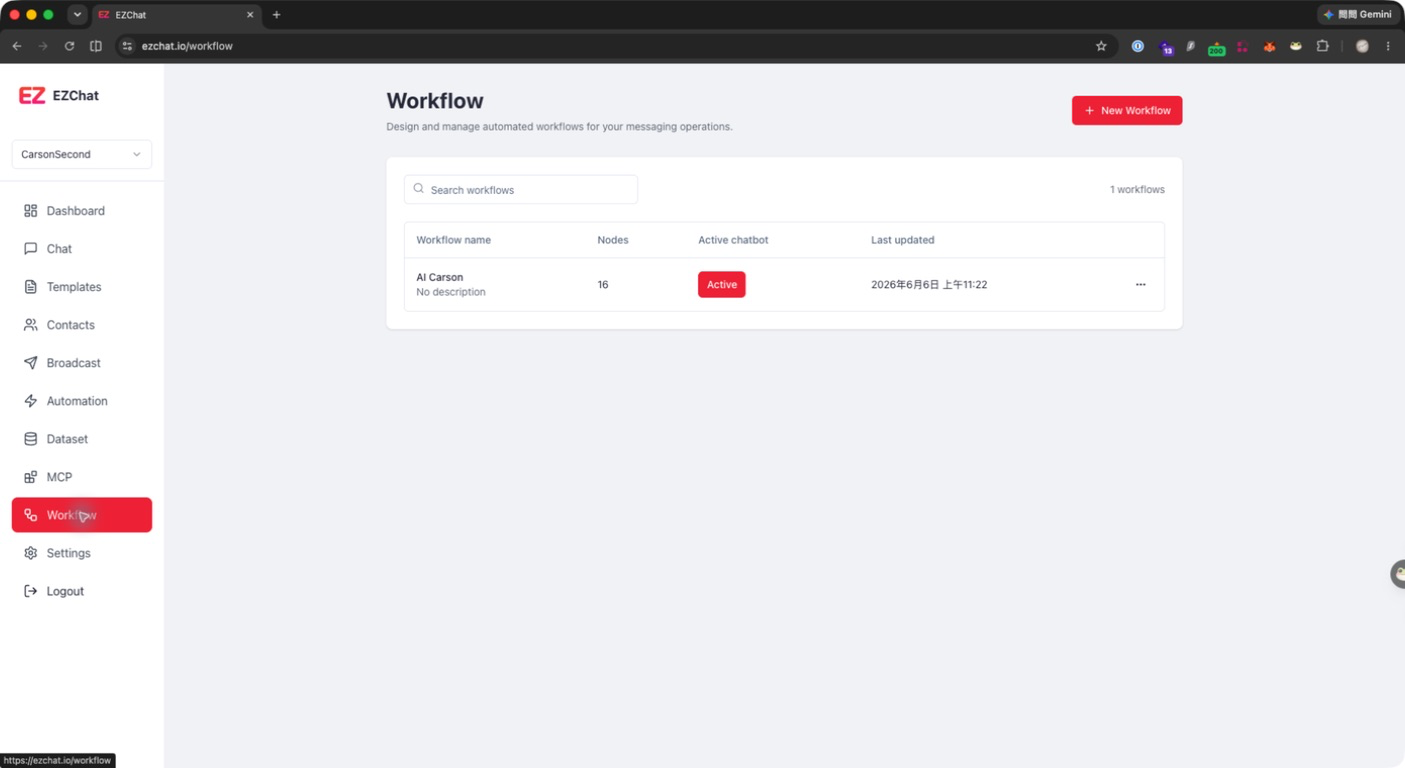
After opening Workflow, you can view workflows under the current account. The list includes:
| Field | Description |
|---|---|
| Workflow name | Workflow title and description. |
| Nodes | Number of nodes in the current graph. |
| Active Chatbot | Sets the workflow as the active chatbot workflow for the account. |
| Last updated | The latest update time of the workflow. |
| Actions | Edit or delete the workflow. |
Create a Workflow
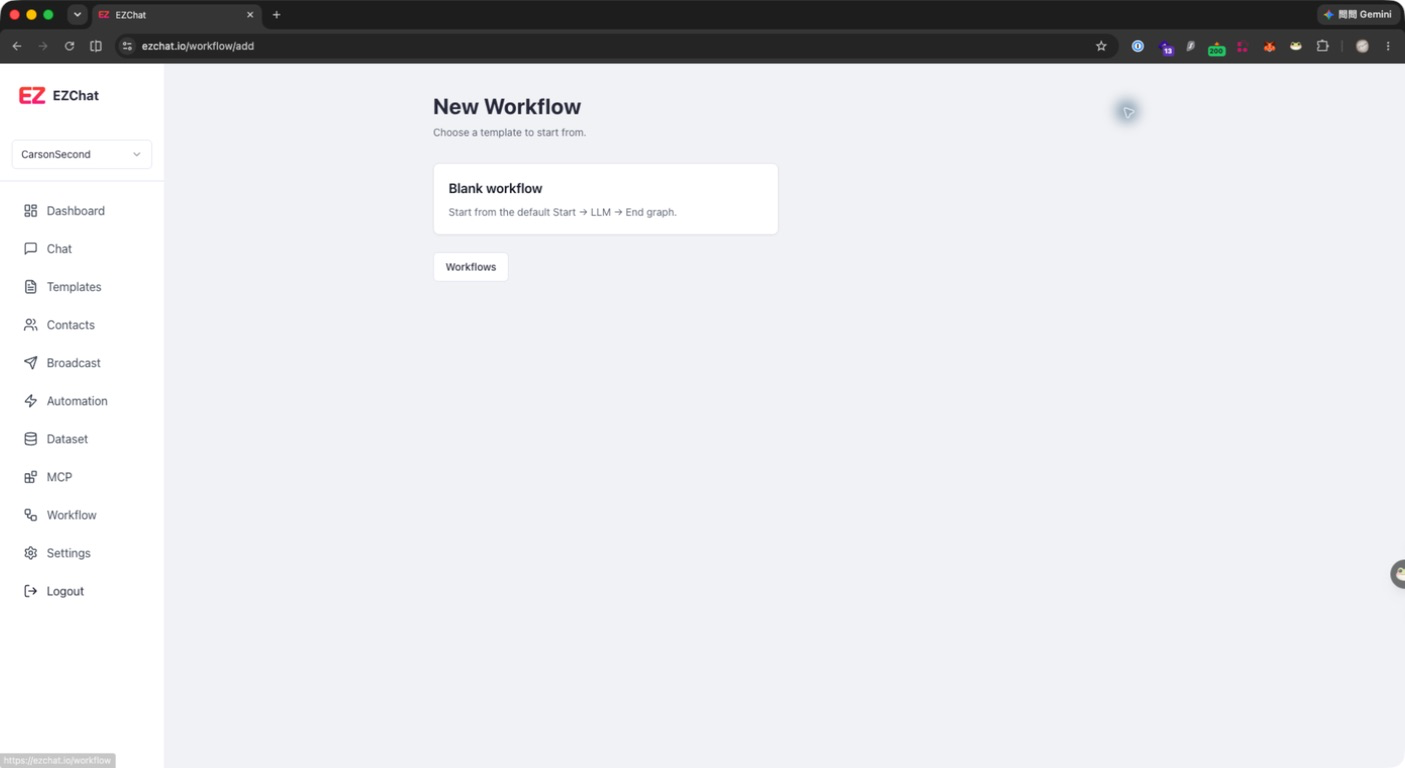
- Click New Workflow.
- Select Blank workflow.
- EZChat starts with a default graph:
Start -> LLM -> End. - After entering Workflow Studio, you can edit the canvas directly.
- Studio automatically saves graph changes.
Workflow Studio
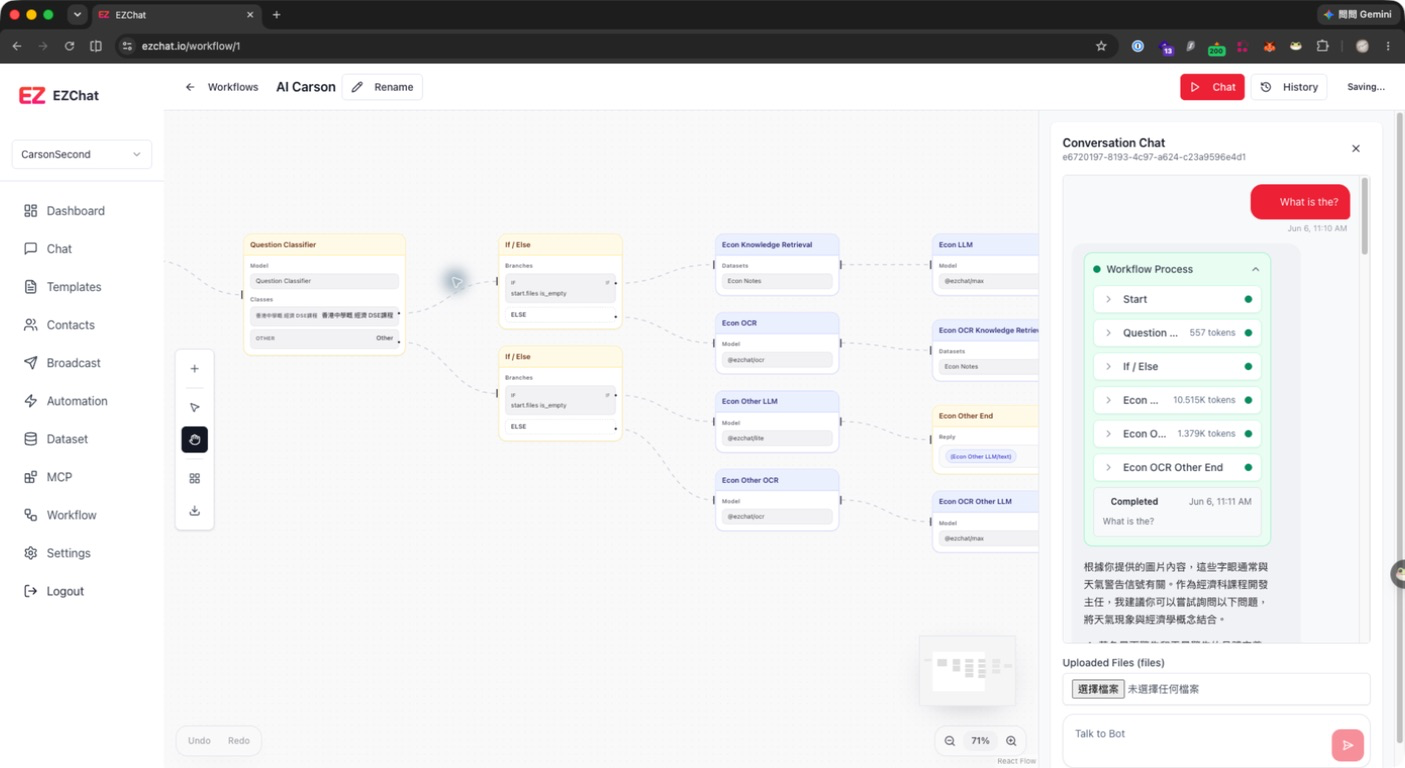
Studio mainly has three areas:
- Canvas: Uses React Flow to display nodes and edges.
- Left toolbar: Add nodes, switch pointer or hand mode, organize the workflow, and export images.
- Right panel: Run chat, view history, or configure the selected node.
You can connect nodes on the canvas. After clicking a node, the right panel shows its settings. The Start node cannot be deleted. Other nodes can be added, moved, connected, or deleted as needed.
Run and Debug
Workflow Studio supports testing directly with the bot:
- Open the Chat panel on the right.
- Enter a user question and click Send.
- EZChat streams workflow execution.
- The reply shows a workflow process trace.
- Expand each trace item to inspect input, process data, and output.
- If knowledge retrieval cites documents, citations appear below the assistant message.
Set as Chatbot Workflow
In the Workflow list, click Set active to set a workflow as the active chatbot workflow for the current account. The active workflow shows Active and cannot be deleted directly.