
Orchestrate Nodes
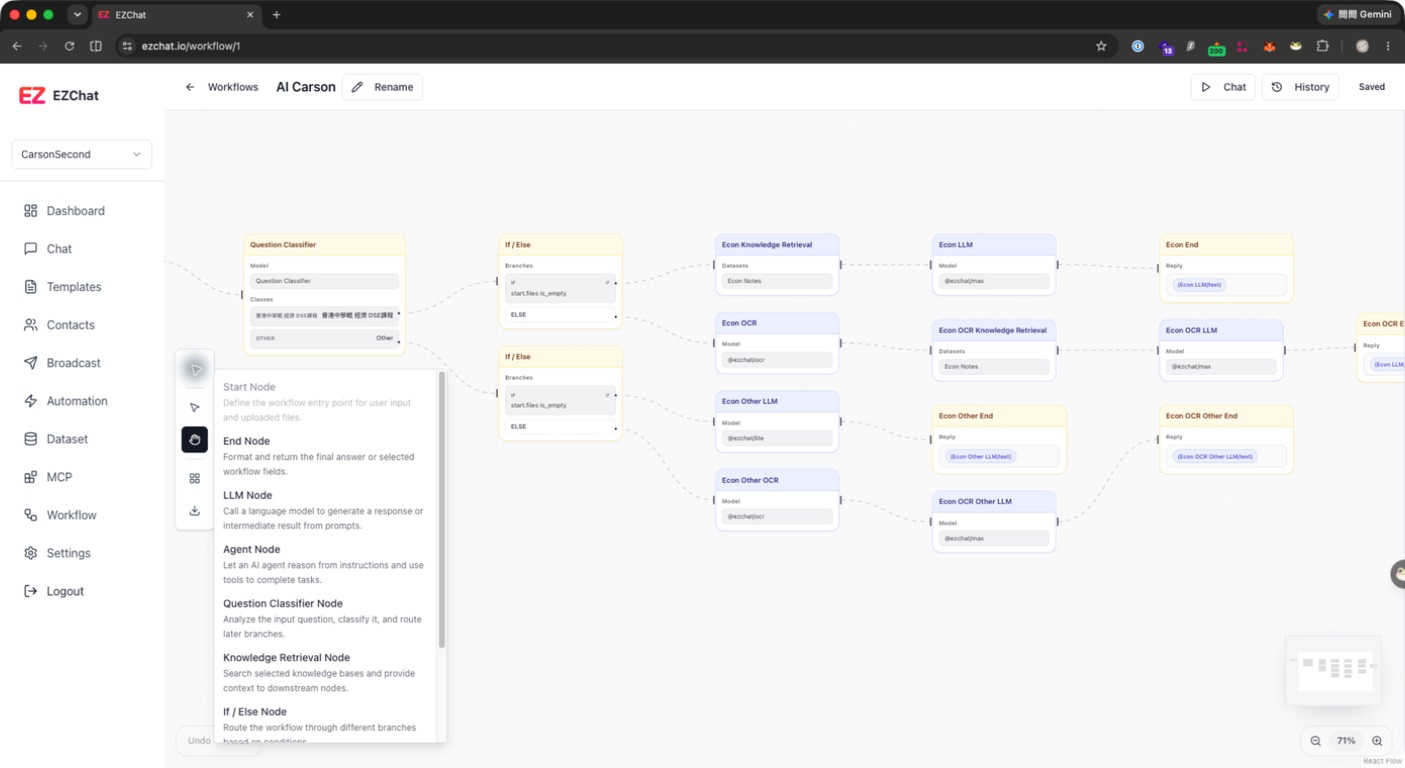
Node orchestration defines how data flows through a workflow. EZChat Workflow Studio uses nodes and edges to form a graph. Each node handles one step, and each edge determines execution order and data flow.
Add Nodes
You can add nodes in these ways:
- Click Add Node from the left toolbar.
- Open the add node menu from an empty area on the canvas.
Currently supported nodes include:
| Node | Usage |
|---|---|
| Start | Workflow entry point. Provides query and files. |
| LLM | Calls a language model to generate text or intermediate results. |
| Knowledge Retrieval | Retrieves relevant chunks from datasets. |
| End | Defines the final output template. |
| Agent | Uses a model and MCP tools to complete tasks. |
| Question Classifier | Classifies input into configured classes. |
| If / Else | Routes execution based on conditions. |
| HTTP | Calls external APIs. |
| Note Memo | Adds notes on the canvas and does not participate in execution. |
Connect Nodes
After connecting nodes with edges, downstream nodes can use outputs from upstream nodes. The settings panel generates selectable variables based on upstream nodes, for example:
| Upstream node | Available variables |
|---|---|
| Start | query, files |
| LLM / Agent | text, usage, model |
| Question Classifier | class_id, class_name, keywords |
| Knowledge Retrieval | documents |
| HTTP | status_code, body, headers |
These variables can be used in prompts, condition checks, knowledge retrieval queries, or final output templates.
Common Canvas Actions
- Pointer mode: Select, move, and configure nodes.
- Hand mode: Pan the canvas.
- Organize: Automatically arrange the workflow layout.
- Undo / Redo: Undo or redo canvas changes.
- Zoom / Mini map: Zoom and navigate quickly.
- Export: Export the current view or the full workflow as PNG, JPEG, or SVG.
Design Recommendations
- Start from the Start node, confirm input fields, then add processing nodes step by step.
- Use clear labels for every node so trace logs and maintenance are easier.
- First run a simple
Start -> LLM -> Endflow, then add retrieval, branches, or APIs. - After adding branches, test success, failure, and fallback cases.