
Create Dataset Overview
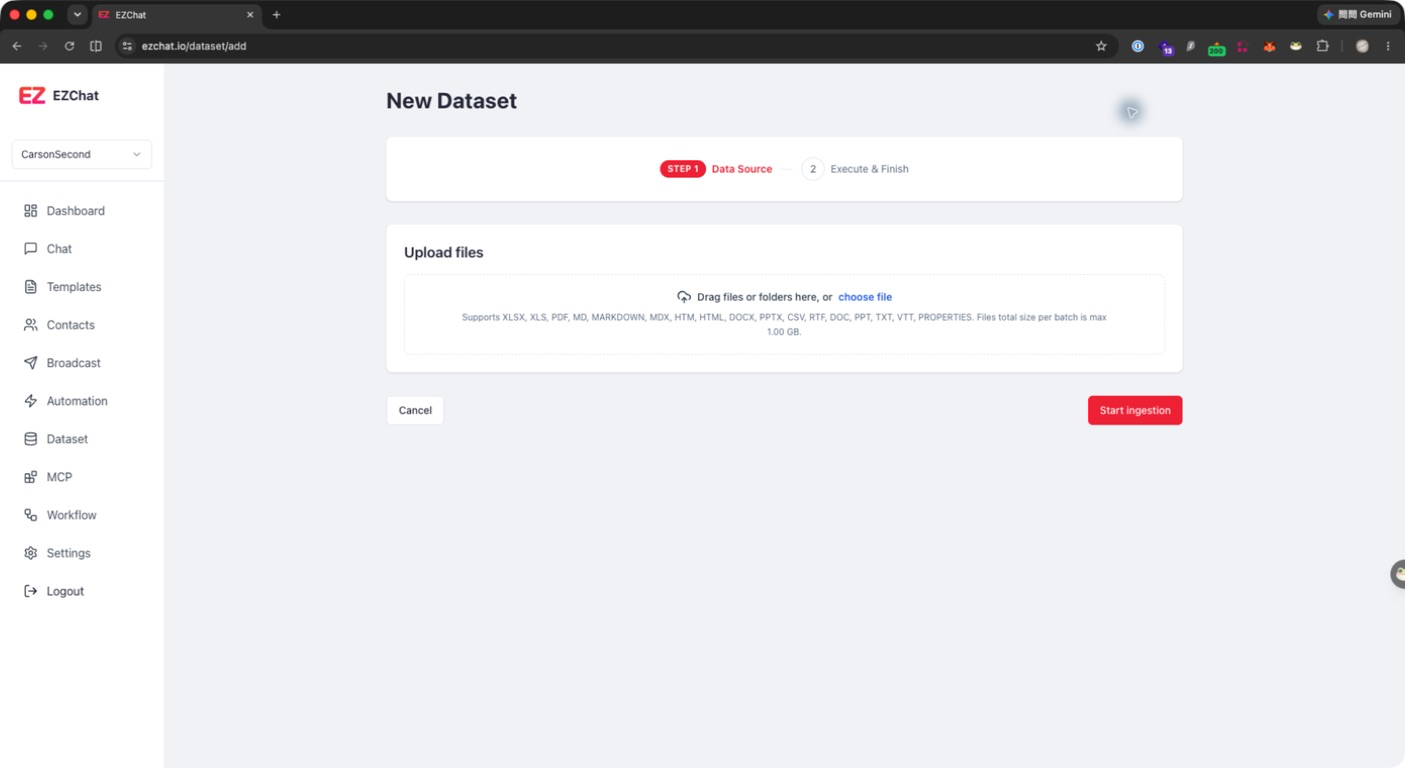
Creating a dataset uploads local files to EZChat, creates a dataset, links the documents, and starts content processing. The current creation flow mainly includes two visible stages: uploading files and processing the uploaded documents.
Creation Flow
- Open Dataset.
- Click New Dataset.
- Drag files into the upload area, or click Select files.
- Wait until all files finish uploading. Progress is shown on each file card.
- Click Start ingestion.
- EZChat creates the dataset, adds the documents, and starts processing.
- After processing is complete, open the dataset or document page to check status and chunks.
Data Submitted During Creation
When creating a dataset, EZChat submits:
| Data | Description |
|---|---|
| title | Uses the first file name as the default dataset name. |
| documents | Document IDs that were uploaded and registered successfully. |
| chunkConfig | Chunk settings. Defaults include chunkSize: 1024 and chunkOverlap: 50. |
| embeddingConfig | Uses the first Embedding model config available to the current account. |
| rerankingConfig | Uses the first Reranking model config available to the current account. Defaults include topK: 3 and scoreThreshold: 0.5. |
| languageHint | Set to chinese or english based on the current interface language. |
| separators | Uses paragraph separator \n\n by default. |
| keepSeparators | Keeps separators by default. |
Note
If the account has not configured an Embedding or Reranking model config, the creation flow will ask you to complete model setup first.
Checks After Creation
After creation, go back to the dataset document list and check each document status:
Pending: The document has been queued for processing.Processing: EZChat is parsing content and creating embeddings.Completed: The document is ready for retrieval.Failed: Processing failed. Re-upload the file or check the file content.