Manage MCP Servers
You can add, edit, refresh, or delete MCP servers from the MCP page, and inspect the tools exposed by each server.
Add an HTTP MCP Server
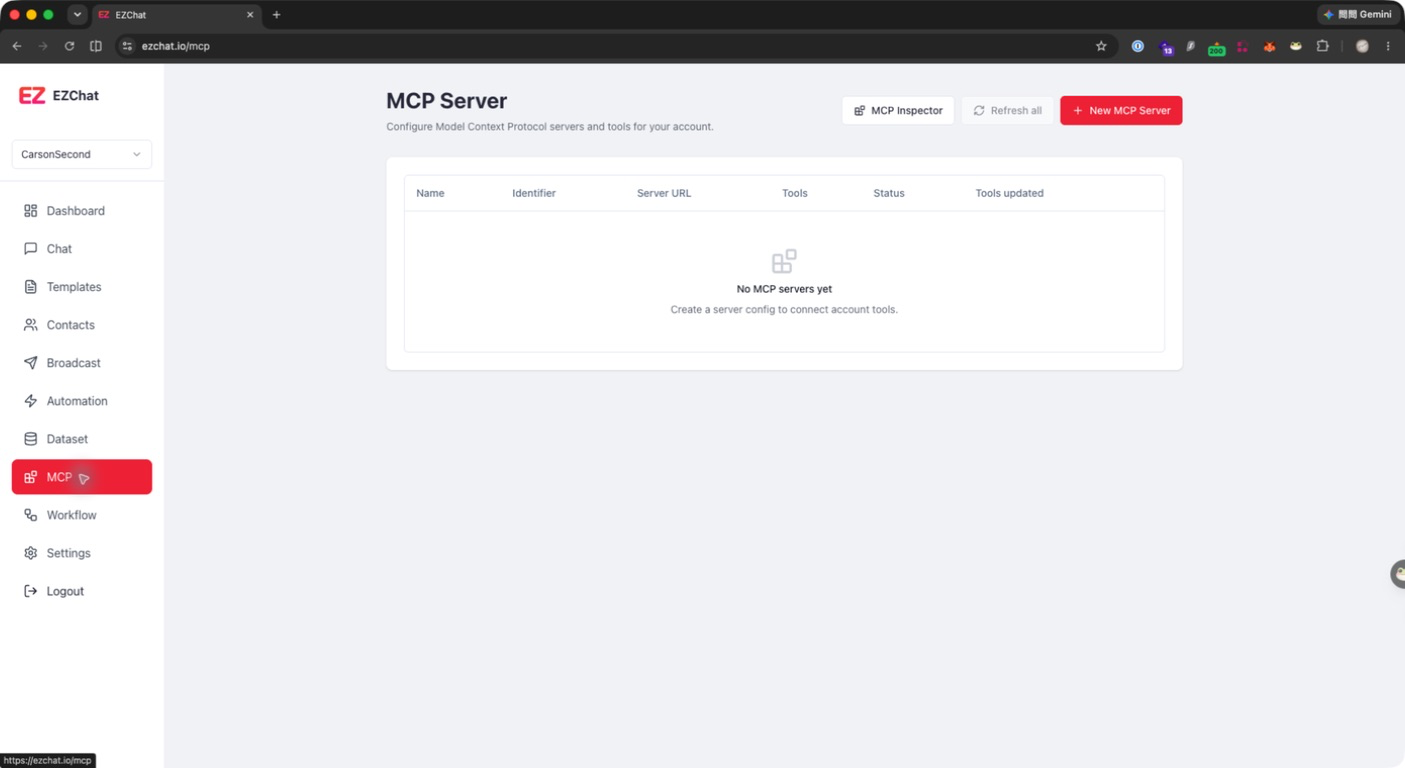
- Open MCP from the left sidebar.
- Click New MCP Server in the upper-right corner.
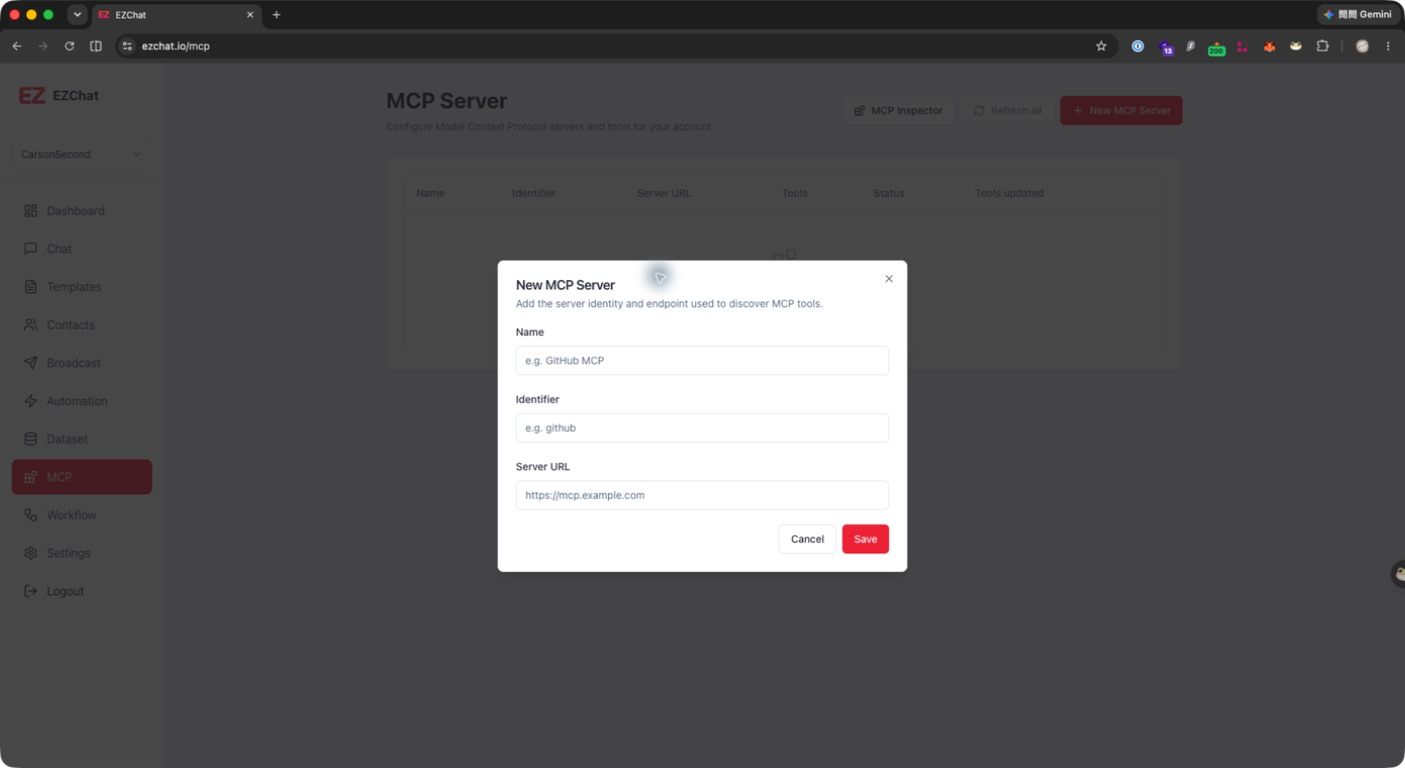
- Fill in the server details:
| Field | Description | Example |
|---|---|---|
| Name | The display name shown in the MCP server list. Use a clear service name. | GitHub MCP |
| Identifier | A unique identifier used inside the workspace. If you change it later, apps or workflows that reference this server may need to be updated. | github |
| Server URL | The HTTP MCP server endpoint. EZChat uses this URL to connect and discover available tools. | https://mcp.example.com |
- Click Save.
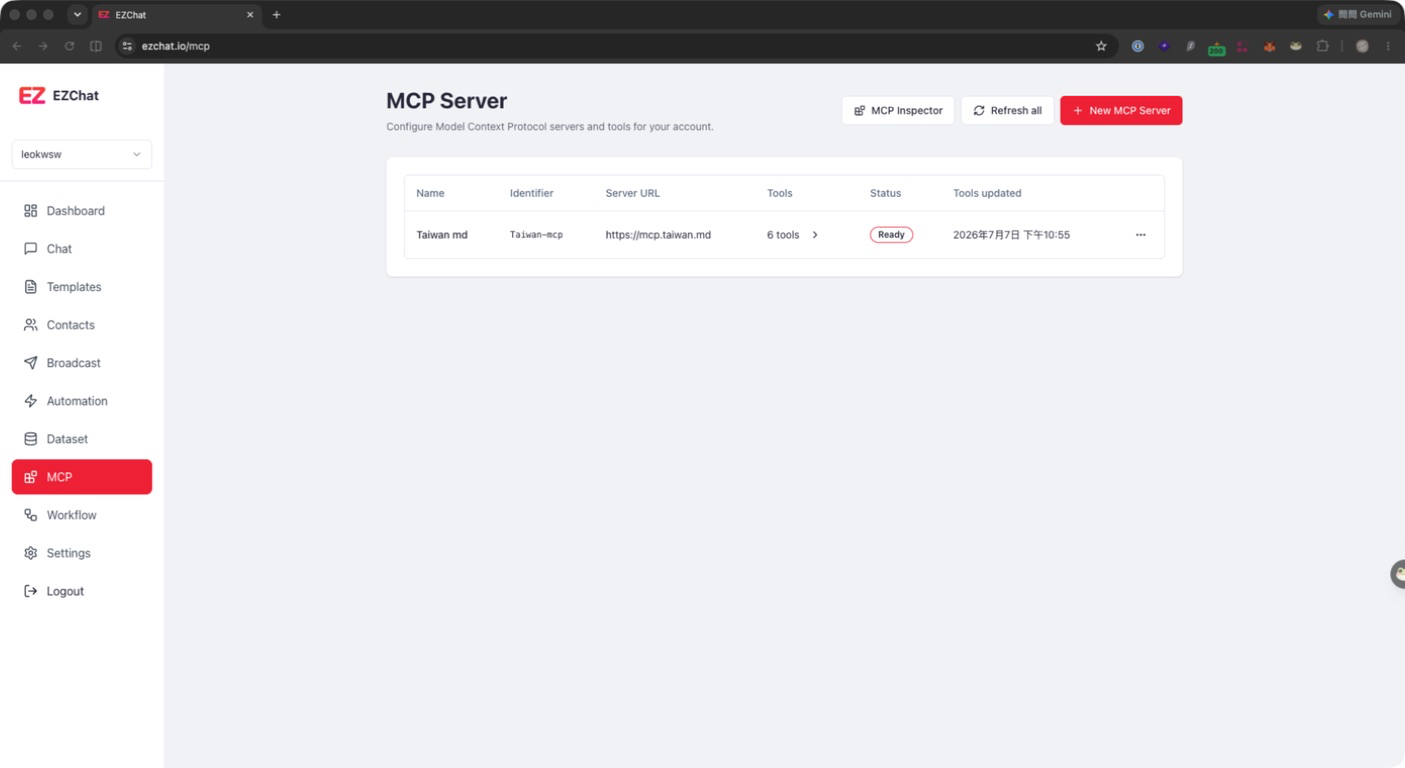
- After returning to the list, confirm that the server status is Ready and check the number of tools.
- If the tools are not updated immediately, open the row menu and click Refresh tools. To update every server, use Refresh all in the upper-right corner.
Update an HTTP MCP Server
- Find the server in the MCP server list.
- Click the row menu on the right side.
- Select Edit.
- Update the Name, Identifier, or Server URL.
- Click Save.
- If the Server URL or available tools have changed, click Refresh tools from the row menu so EZChat can fetch the latest tool list.
Note
The Identifier is used by apps and workflows to reference the MCP server. Avoid changing it unless you are sure no existing workflows or apps depend on the old identifier.
Use MCP Inspector
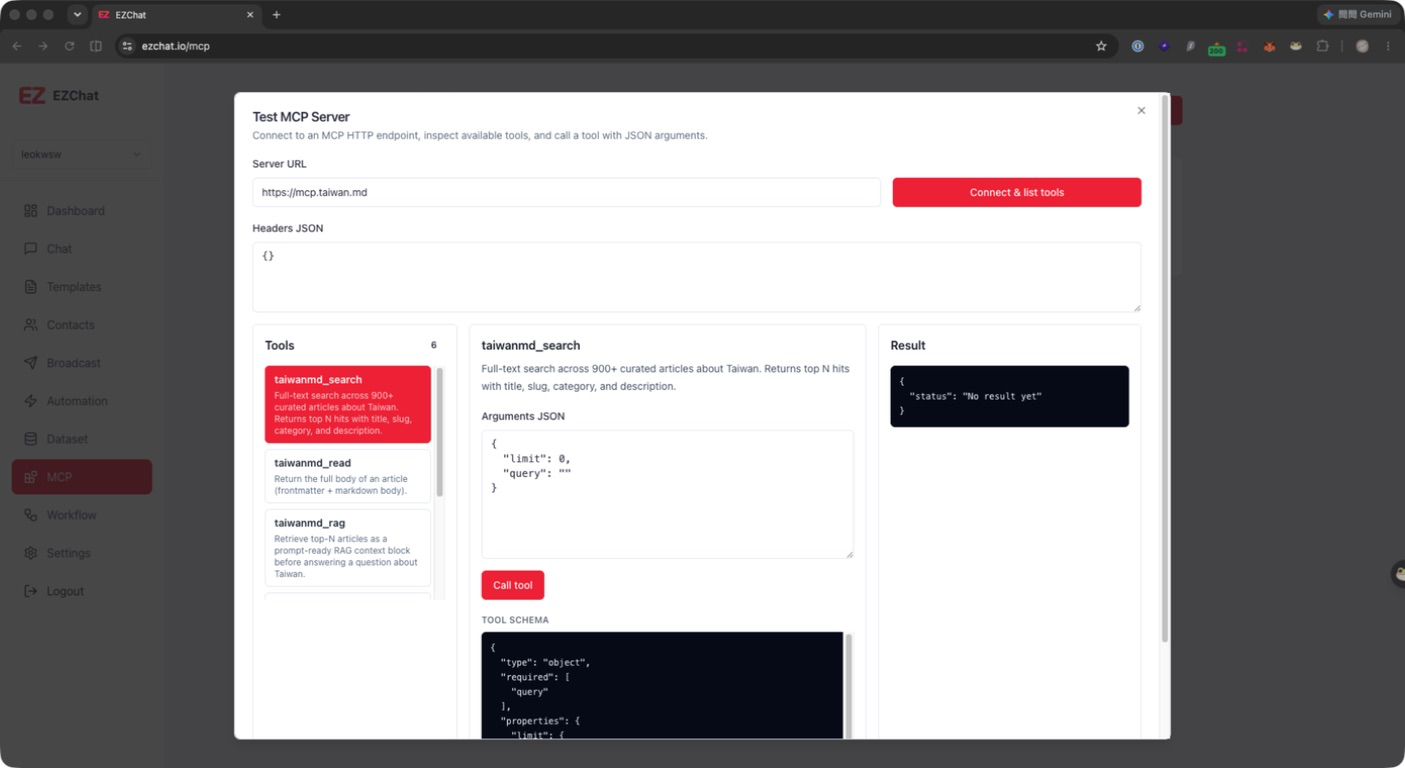
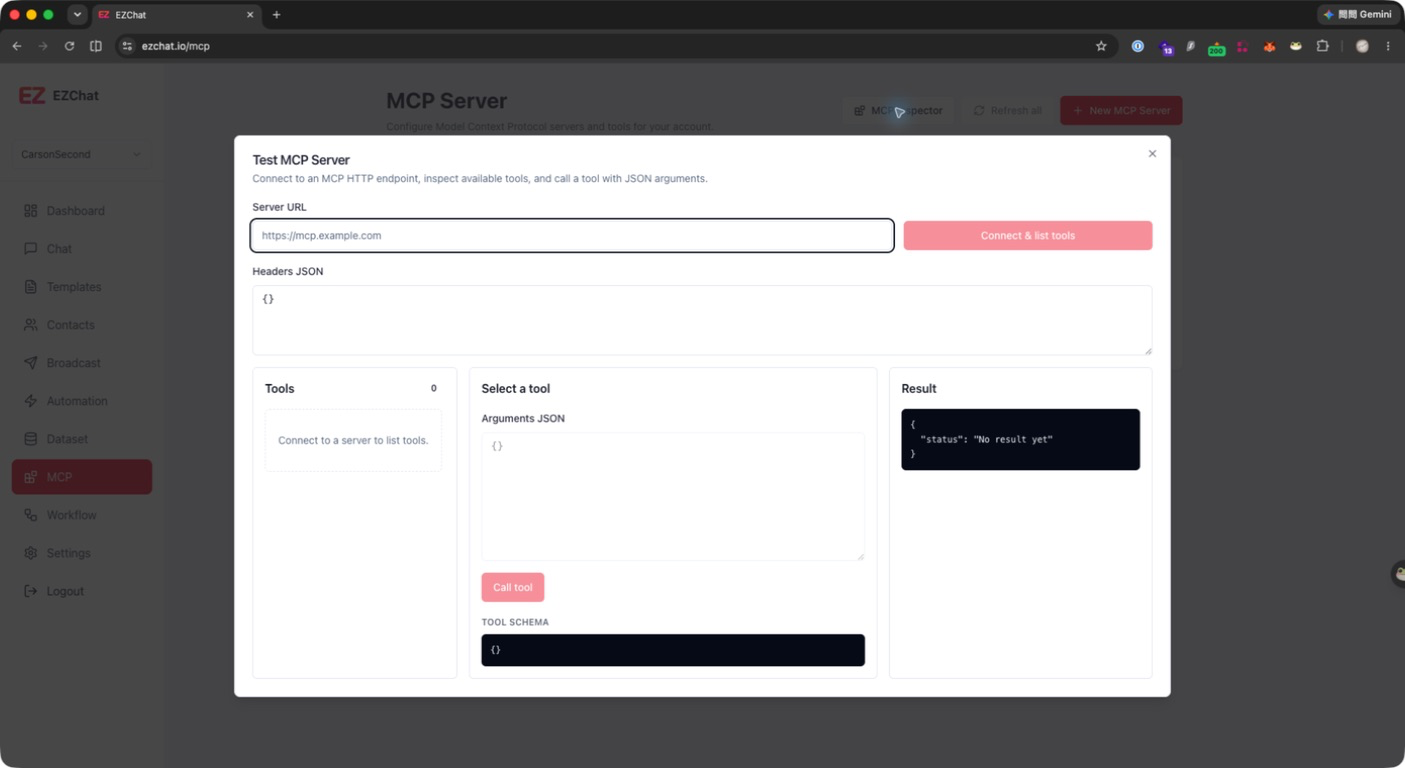
MCP Inspector helps you test whether an HTTP MCP server can connect, list tools, and call a selected tool with JSON arguments. It is useful before adding or updating a server, and when troubleshooting tool schemas or responses.
Connect and List Tools
- Click MCP Inspector in the upper-right corner of the MCP page.
- Enter the HTTP MCP server endpoint in Server URL.
- If the server requires extra headers, enter a JSON object in Headers JSON, for example:
json
{
  "Authorization": "Bearer YOUR_TOKEN"
}- Click Connect & list tools.
- After a successful connection, the available tools appear on the left, and the Result area shows the tools/list response.
Test a Tool Call
- Select a tool from the list in the Inspector.
- The middle panel shows the tool name, description, Arguments JSON, and Tool Schema.
- Update Arguments JSON according to the Tool Schema.
- Click Call tool.
- Check the Result panel on the right. If an error appears, verify the Server URL, Headers JSON, Arguments JSON, and server-side permissions.